Changelog

Follow new updates and improvements to Supered.

New Feature: Build & Edit Process Rules with Supered Assistant

Build or edit process rules with Supered Assistant within the actual rule builder.

  • For building: You can start with a rough idea and the assistant will ask questions to propose a built rule that you can continue to tweak and finalize to the desired outcome.

  • For editing: You can open up the rule you want to edit and discuss your desired edits with the assistant.

Benefits:

  • Low barrier to entry: You don’t need the exact logic or prompt up front to build a rule.

  • Stay in the flow of work: No switching tools or tabs.

  • Context-aware: Supered Assistant is context aware and references where you are and what you’re already building to make recommendations and ask questions.

  • Review: Nothing is created without your review. See the full rule (logic, prompt, type) before it’s saved.

How to use:

  1. While creating or editing a rule, open Supered Assistant by clicking the 3 pink stars.

  2. Describe your rule idea in plain language (or how you’d like to edit the rule). It’s okay if you don’t know everything to include because the assistant will prompt with questions.

  3. Answer the Supered Assistant’s follow-up questions, such as what counts as “stale”, which pipeline, which stages to exclude, thresholds, etc.

  4. Review the proposed rule.

  5. Accept or continue editing the proposed rule.

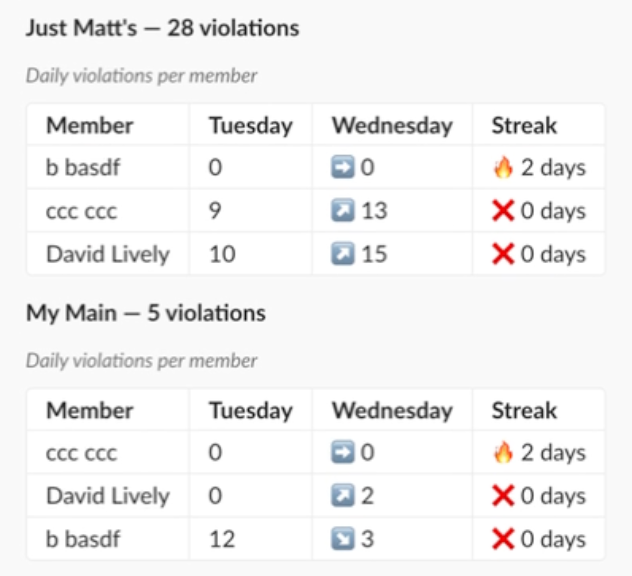
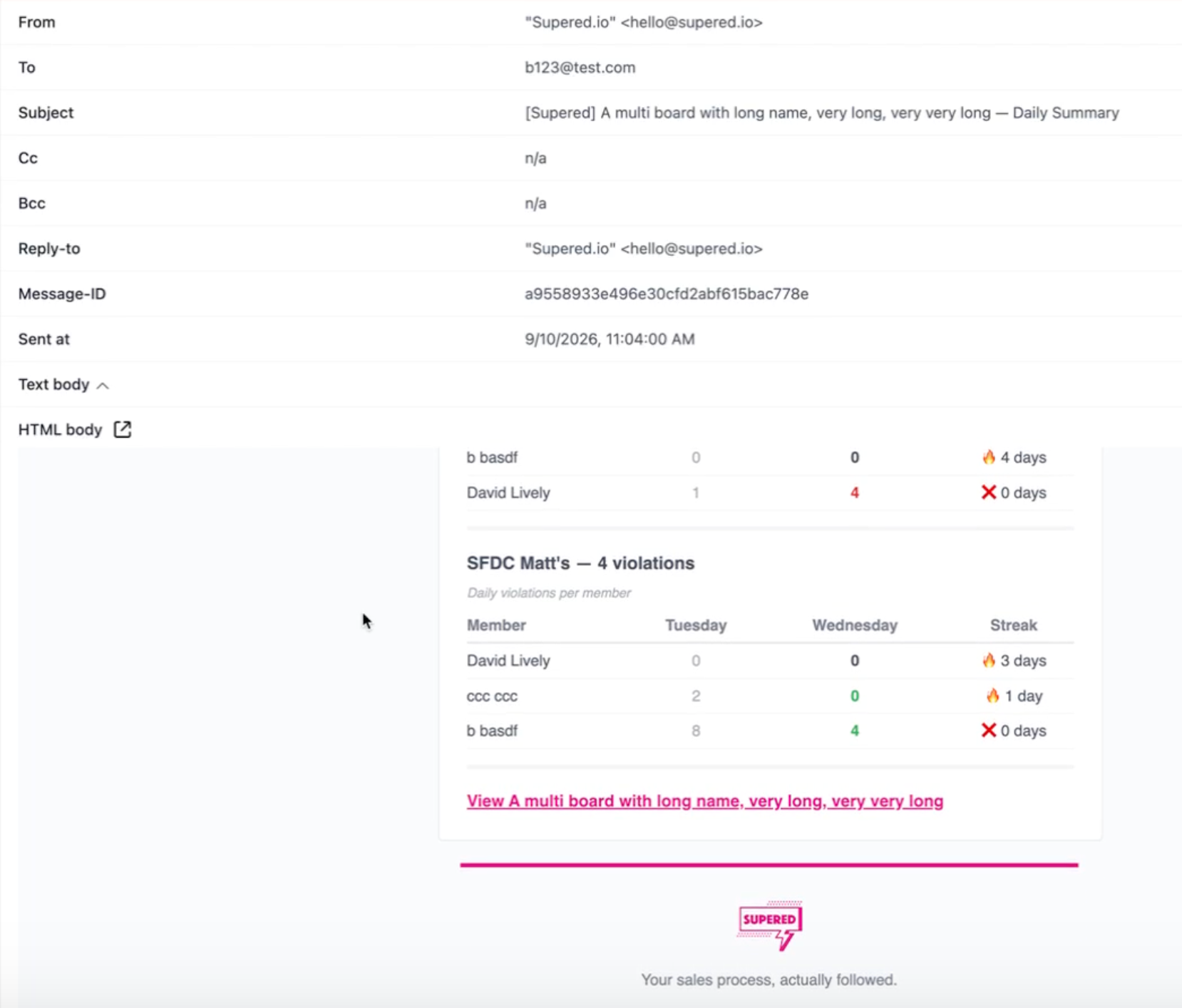
New Feature: Process Board Notifications

Admins can now configure automated email and Slack notifications for process boards.

How to:

  1. Click the gear icon next to the board title to edit the settings of the board.

  2. Select the Notifications tab.

  3. Check the Enabled box and select your preferences.

    • Daily or Weekly

      • Weekly: Shows previous 2 weeks

      • Daily: Shows previous 2 days

      • Streak Exempt Days: The org-wide streak exempt days that are selected in the ‘Processes general settings’ will be accounted for.

    • People or Groups

    • Slack channels

    • External emails

    • Email all board members

      • Note: Only available with a ‘manual only’ board.

  4. Click Save.

Notifications:

  • Include:

    • Board performance summary

    • Current vs. previous period stats

    • Per-board breakdowns

Improved Feature: Restrict Members to Their Own Records

Admin’s can now restrict members on a process board so that they can only see their own stats and records, instead of the entire team’s.

How to enable:

  1. Edit the Process Board Settings by clicking the gear icon that is next to the process board name at the top of any process board.

  2. Click into the Members tab.

  3. Toggle switch on for Restrict members to their own records.

  4. Click Save.

Default: Everyone can see everyone’s records and stats.

Managers & Admins: They have bypass access and will continue to see everyone’s data.

Earlier updates